

Formatting a USB drive on Windows is something most users need to do at some point. Whether you want to erase old files, fix a corrupted drive, or change the file system so it works with other devices, the process is simple once you know the steps.
Why Format a USB Drive on Windows
There are several scenarios that might require you to format a USB drive. The most common reasons include clearing out old data, removing viruses or errors, and changing the file system format. For example, a drive formatted for Windows may not work properly with a Mac or a smart TV, and reformatting can fix that.
According to Windows Central, formatting a USB flash drive on Windows 10 is a basic maintenance task that can resolve many common drive issues.
How to Format a USB Drive Using File Explorer
The easiest way to format a USB drive on Windows is through File Explorer. This method works on both Windows 10 and Windows 11 and takes less than a minute to complete.
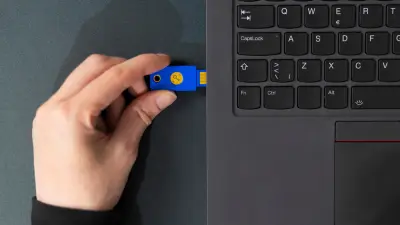
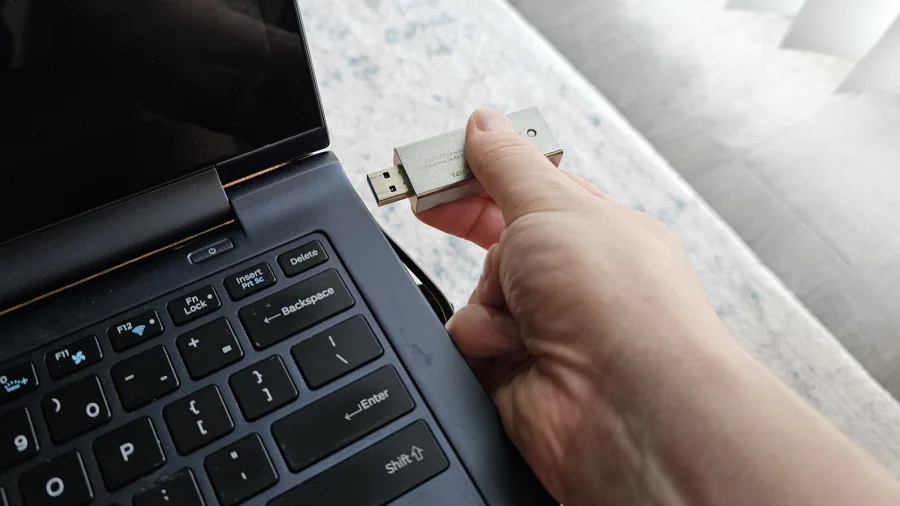
First, plug the USB drive into your computer. Open File Explorer and find the drive under "This PC" or "My Computer." Right-click on the drive and select "Format" from the menu. A dialog box will appear with several options.
According to Make Tech Easier, you can choose the file system you want — NTFS, FAT32, or exFAT — and decide whether to do a quick format or a full format. A quick format only removes the file structure, while a full format also scans for bad sectors.
Using Disk Management to Format a USB Drive
If File Explorer does not work, or if the drive is not showing up properly, Disk Management is a reliable backup option. This built-in Windows tool gives you more control over drives and partitions.
To open Disk Management, right-click the Start button and select "Disk Management." Find your USB drive in the list, right-click on its partition, and choose "Format." You can then set the file system and volume label before confirming.
According to DiskPart, there are three easy methods to reformat a USB drive in Windows 10 or 11 — File Explorer, Disk Management, and a free third-party tool. Each method can fix errors, change file systems, and erase data safely.
Choosing the Right File System for Your USB Drive
When you format a USB drive on Windows, you will be asked to pick a file system. This choice matters because it determines which devices can read the drive.
- FAT32 — Works with almost everything, including older devices, but cannot store files larger than 4GB.
- exFAT — Best for large files and works with modern devices like cameras, game consoles, and Macs.
- NTFS — Best for Windows-only use, supports large files, and includes security features.
According to wikiHow, the right file system depends on how you plan to use the drive. If you are unsure, exFAT is a safe middle ground for most users.
Important Warnings Before You Format
Formatting a USB drive erases everything on it. There is no undo button, so double-check that you have backed up any files you want to keep before you start.
According to Engadget, the formatting process is straightforward, but users should be careful to select the correct drive. Choosing the wrong drive — like an external hard drive with important data — can lead to permanent data loss.
Our Take: Formatting Is Simple but Requires Care
Formatting a USB drive on Windows is one of those tasks that looks intimidating but is actually very simple. The tools are built into the operating system, and the entire process takes only a few clicks.
In our view, the biggest risk is not the formatting itself — it is picking the wrong drive or forgetting to back up your files. Always check the drive letter and capacity before you confirm. If you are unsure which drive is which, unplug other USB devices before you start.
To put it plainly, if you follow the steps and stay careful, formatting a USB drive on Windows is a safe and quick way to fix problems or prepare the drive for a new purpose.